How Solvro works with any meeting app
Solvro is a desktop app for Windows and macOS. It does not join the call, install a browser extension or add a bot to the meeting. Three things make it work with every meeting app:
- It listens to system audio. Whatever the interviewer says plays through your computer, and Interview mode transcribes it as they speak, then answers each question within seconds.
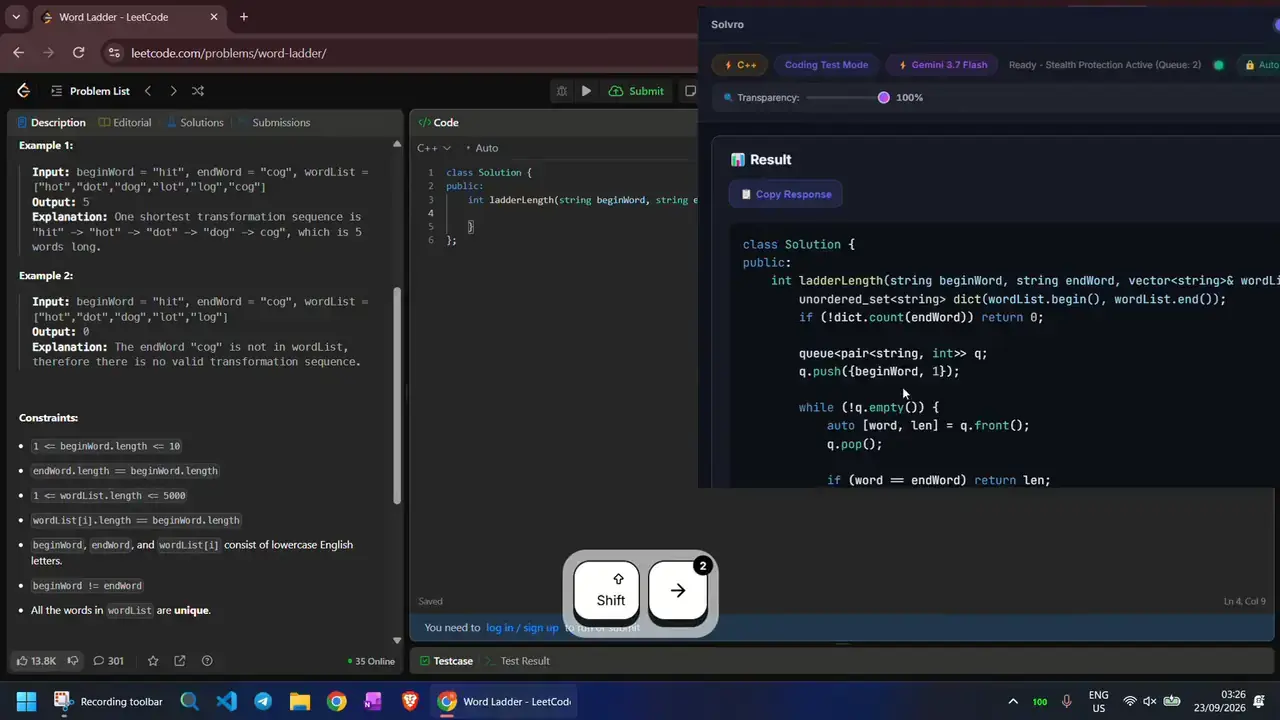
- It reads the screen on demand. CtrlShiftS captures what is in front of you, such as a shared document or a coding problem, for Coding Test, MCQ or Query mode.
- Its window stays out of captures. Solvro sets the operating system's content-protection flag, which excludes its window from screen capture and recording. If you share your screen, the overlay is not in the picture.
Zoom
Zoom's desktop app and its browser version both play the interviewer's voice through system audio, so Interview mode hears them either way.
- Sharing: Zoom offers your whole screen or a single window. If you are asked to share, sharing only the window you are working in (the editor or the document) is the tidiest choice for any interview, since it keeps notifications and other apps private.
- Share sound: this option sends your computer's audio to the other side. You do not need it for Solvro.
- Recording: Zoom records what is shared and the video feeds. The Solvro window is excluded from screen recording in the same way it is excluded from a share.
Microsoft Teams
Teams runs as a desktop app or in the browser, and both work with Interview mode.
- Sharing: the Share button offers your screen or a single window. A window share shows only that window.
- Include sound: like Zoom's option, this sends your computer audio to the meeting. Leave it off unless you are asked to play something.
- Recording and transcripts: many companies record Teams interviews. Solvro listens on your side and adds nothing to the meeting's own transcript.
Google Meet
Meet runs in the browser, which suits Solvro well because the assistant is not part of the browser at all.
- Sharing: Meet offers your entire screen, a window, or a single Chrome tab. A tab share shows that tab only.
- Audio: Meet's audio plays through system audio like any other app, so Interview mode transcribes it normally.
- Tip: if Meet is in the same browser as a coding test, capture the problem with CtrlShiftS rather than switching tabs.
Webex and others
Webex, Amazon Chime, Slack huddles and recruiter calls taken through a desktop app all work the same way: if the interviewer's voice plays through your computer, Interview mode can hear it. Interview mode listens to your computer's audio, so take a recruiter screen through a desktop or browser app rather than on your phone.
Where to put the overlay
Your eyes give more away on video than any screen share. Set the window up once:
- Move it just below your camera with the arrow shortcuts, so reading keeps your gaze near the lens.
- Fade it with CtrlShift[ and CtrlShift] to the lowest opacity you can still read.
- Learn CtrlSpace, which hides it instantly.
- Keep answers short with a custom instruction such as "one-line answer, then three short bullets".
A five-minute check before the call
- Open Solvro before you join, and check the mode and model.
- Start Interview mode with CtrlShiftA.
- Play a short video with speech and confirm the transcript appears.
- Share your screen in a test meeting and look at what the other side sees.
- Put on headphones. The transcript stays clean because only the interviewer comes through system audio, and nothing echoes.
On macOS, allow Screen Recording and Microphone for Solvro when asked: screenshots and Interview mode need them. On macOS the shortcuts use Cmd in place of Ctrl.
If something goes wrong
| Problem | Fix |
|---|---|
| No transcript | Check the meeting's speaker is your default output device, and on macOS that Solvro has Screen Recording permission |
| Answers feel slow | Switch to a Gemini model with CtrlShiftM; they are the fastest |
| Answer is off target | Press CtrlShiftN to start a fresh answer for the current question |
| Window in the way | Fade it, move it, or hide it with CtrlSpace |
Check the rules first
Most employers and assessment platforms prohibit outside help in their terms. Solvro keeps its window out of screen captures, but no tool can promise it will never be noticed, and breaking those rules can cost you an offer. Decide for yourself whether that risk is worth taking.
Frequently asked questions
No. Solvro runs on your own computer and transcribes system audio, which is where the interviewer's voice plays. Nothing is added to the meeting and no bot joins.
Solvro sets the operating system's content-protection flag, which excludes its window from screen capture and recording, so it does not appear in a normal Zoom, Teams or Meet share. Rehearse a share in a test meeting before a real interview.
Yes. Meet plays audio through your computer like any other app, so Interview mode hears it. Solvro is a separate desktop app, not a browser extension.
They help. With headphones, only the interviewer comes through system audio, so the transcript stays clean and nothing echoes back into the call.
Yes, on Apple Silicon Macs (M1 or newer). Allow Screen Recording and Microphone when asked, and use Cmd in place of Ctrl for the shortcuts.